Extensionby Uda Huri
Cursor Usage (status bar)
Live Cursor usage in your status bar & sidebar — read-only, no login (reuses Cursor's local session).
0.0 · No ratings 3 0
Install
code --install-extension <file>.vsixCopies a short prompt — paste it into Cursor (or another AI agent) to set this up for you.
Guidance
A tiny, read-only VS Code / Cursor extension that shows your live Cursor usage in the status bar and a sidebar panel — with no separate login. It reuses the session token Cursor already stores locally.
- Status-bar badges:
⏲ 415/500(included requests) ·$0/$75(on-demand spend); each turns white → amber (≥80%) → red (≥100%). - Sidebar panel: usage %, remaining, reset date, on-demand spend, optional burn-rate line and per-model table, adaptive layout.
- Auth is zero-setup: reads the four
cursorAuth/*keys read-only from Cursor's SQLite store; the token stays in memory only. Requires thesqlite3CLI on PATH.
Install: download the latest .vsix from Releases, then code --install-extension <file>.vsix (or "Install from VSIX" in the Extensions panel).
README
Cursor Usage


A tiny, read-only VS Code / Cursor extension that shows your live Cursor usage in the status bar and a sidebar panel — with no separate login. It reuses the session token Cursor already stores locally on your machine.
Preview
| Dark theme | Light theme |
|---|---|
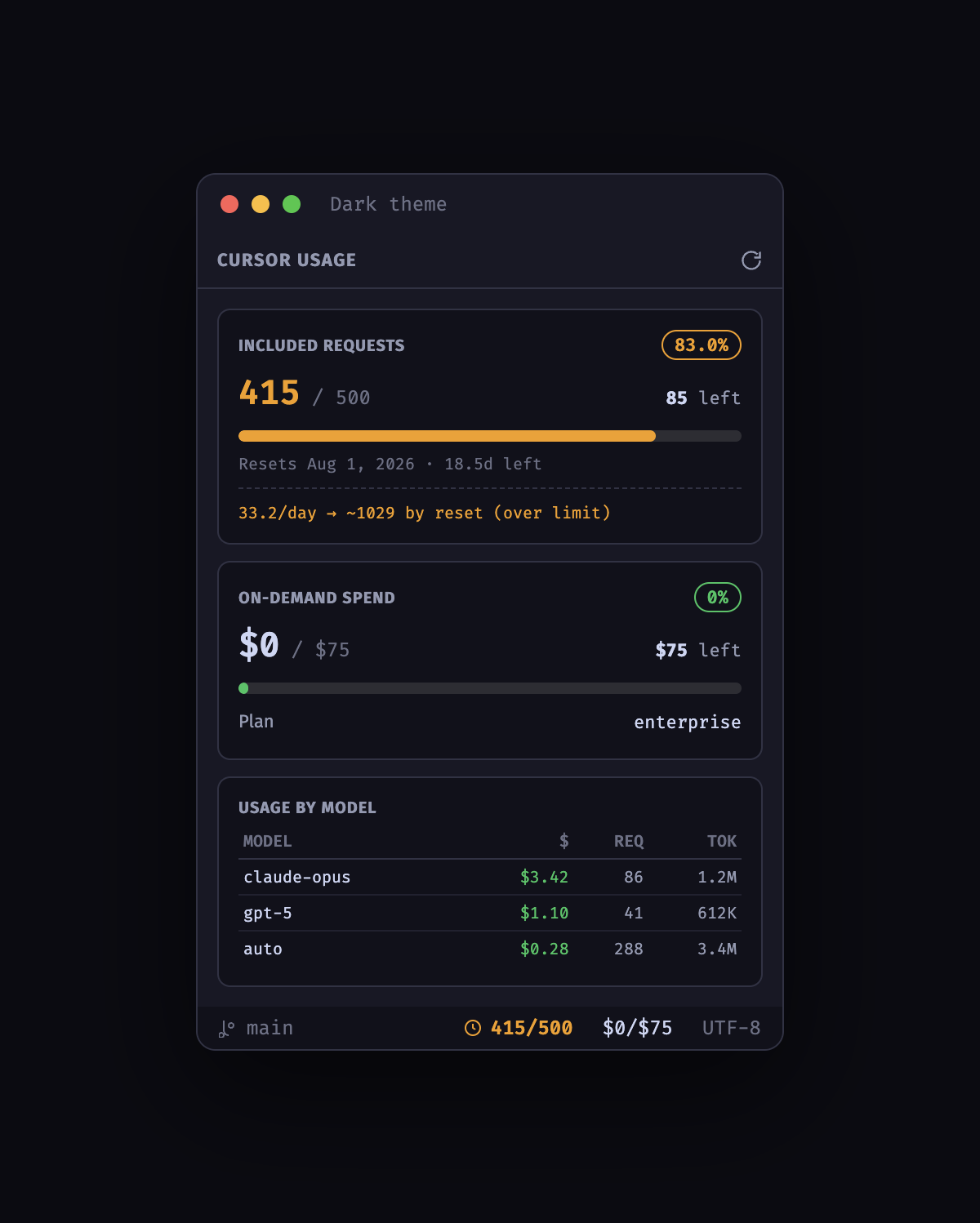 | 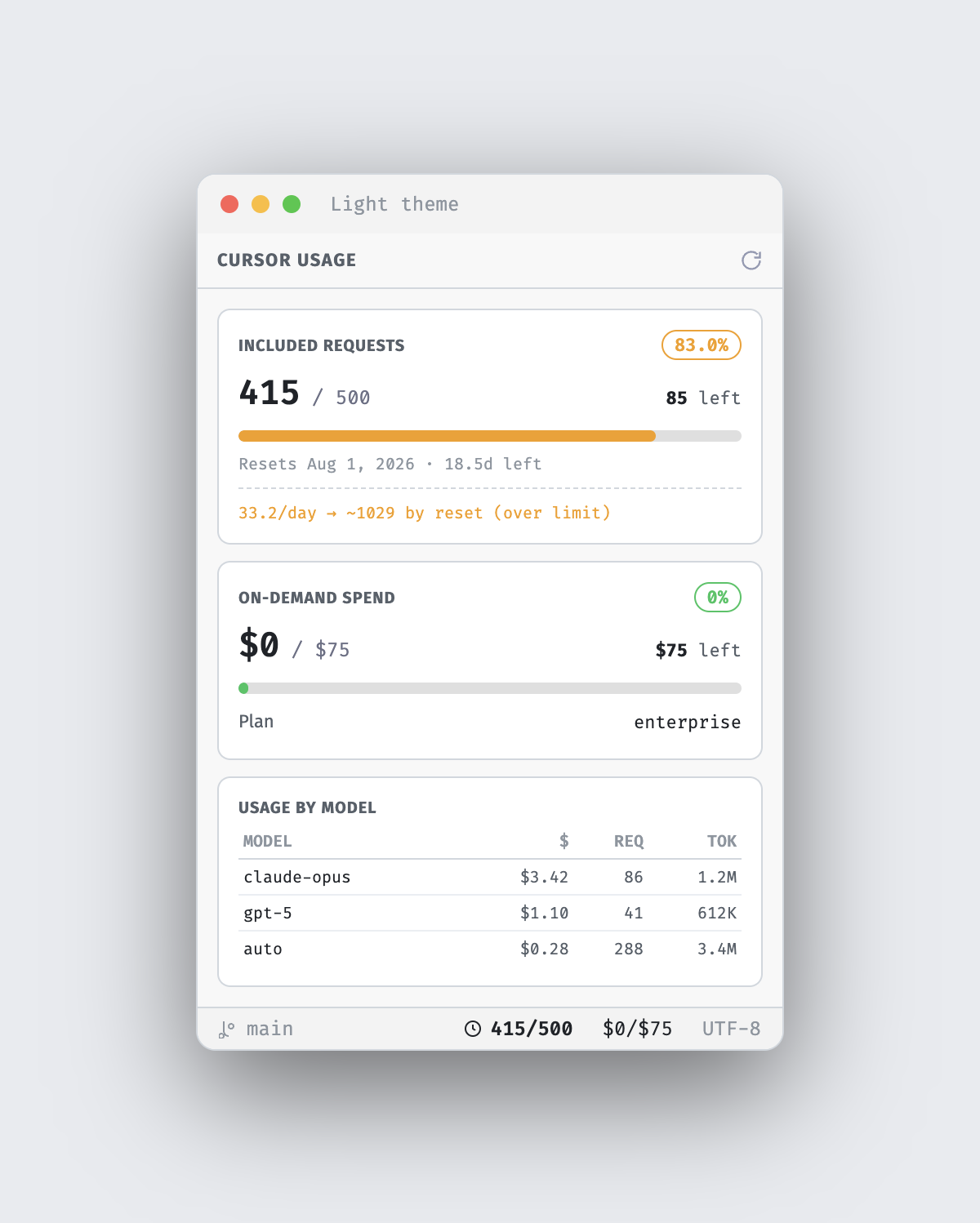 |
The whole UI adapts to your VS Code / Cursor theme (dark, light, or high-contrast).
Features
- Status-bar badge — two adjacent items
⏲ 415/500$0/$75(included requests used/limit and on-demand spend), so each is colored on its own: white → amber (≥80%) → red (≥100%). Click to open details. - Sidebar detail panel (adaptive):
- Included requests: used / limit (pct), remaining, progress bar (capped at 100%),
and
Resets <date> (<daysLeft>d left). - On-demand spend:
$used / $limit, plan. - Optional burn-rate line:
<req>/day → ~<projected> by reset. - Optional per-model table (team accounts).
- A Reconnect hint when auth is missing/expired.
- Adaptive layout — full when the panel is tall, condensed when short.
Override with
cursorUsage.detailLevel.
- Included requests: used / limit (pct), remaining, progress bar (capped at 100%),
and
Tags
extensionusagevscodecursor
Comments
No comments yet.